Basic navigation
A few features make moving through the platform fast:- Instant search — start typing and matching results appear in real time.
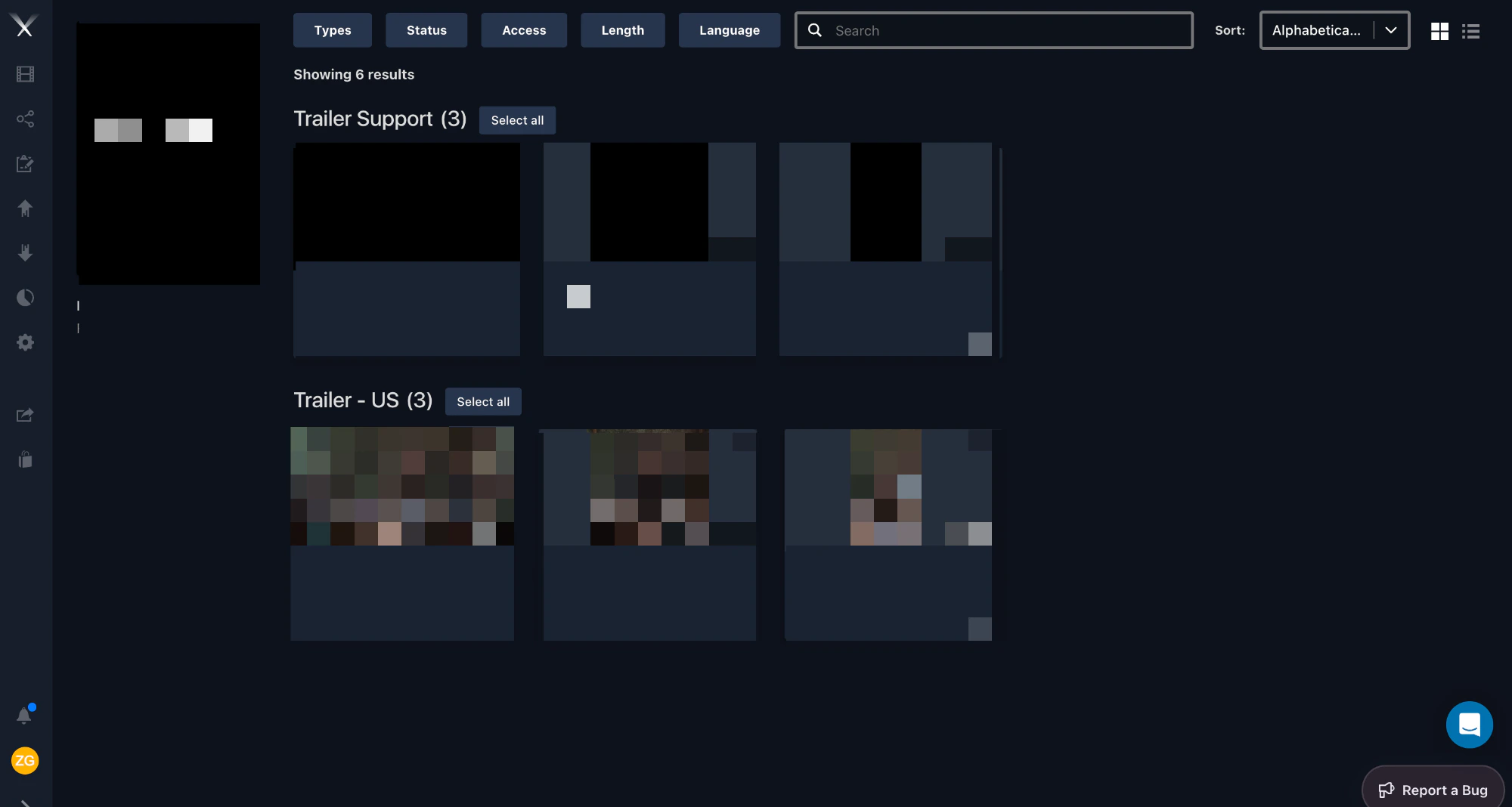
- Campaign view — see an entire project at once. All asset types show by default; search and filter to customize the view.
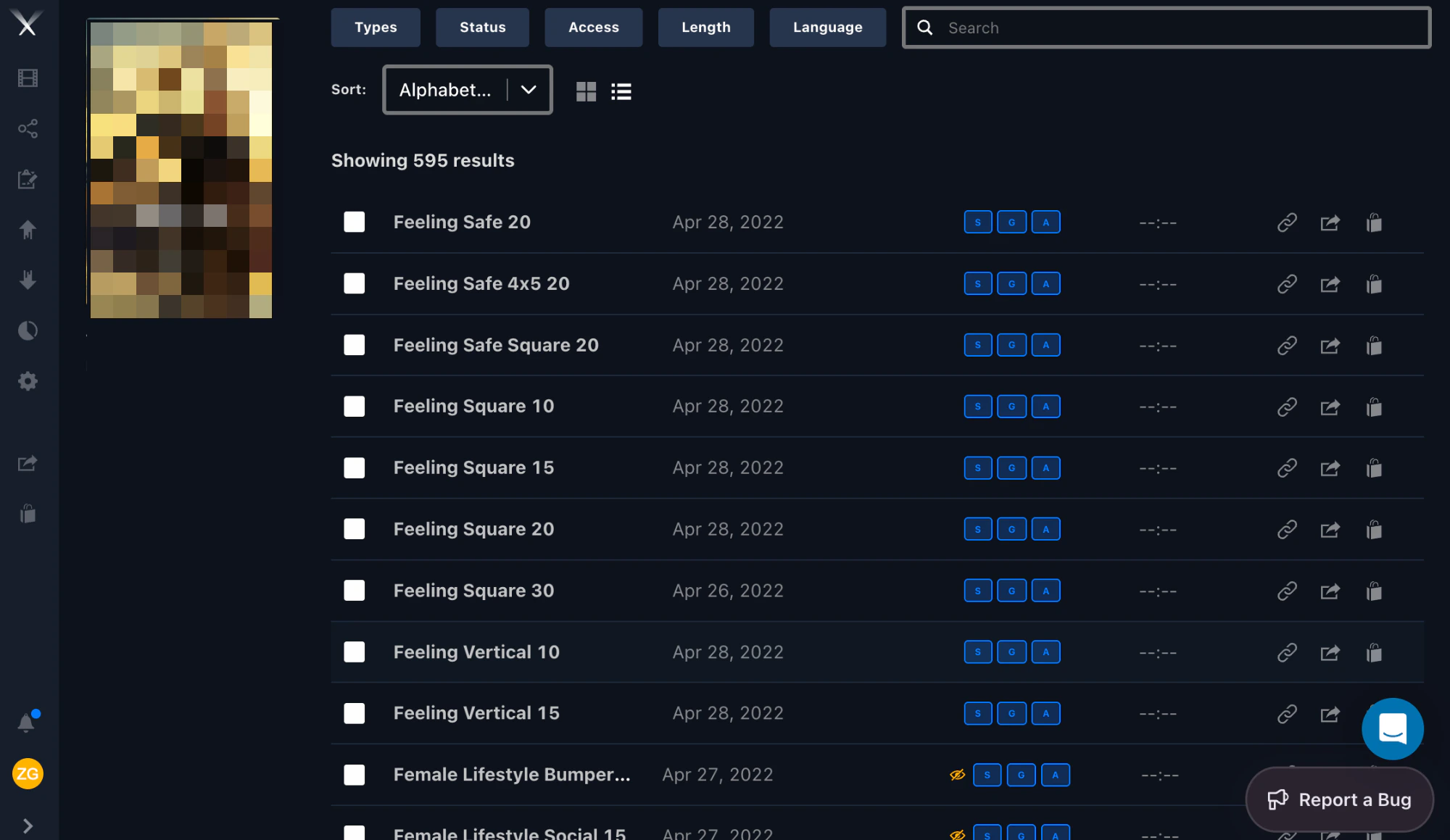
- List view — a denser layout with smaller thumbnails and more detail per row, if you prefer lists to tiles.
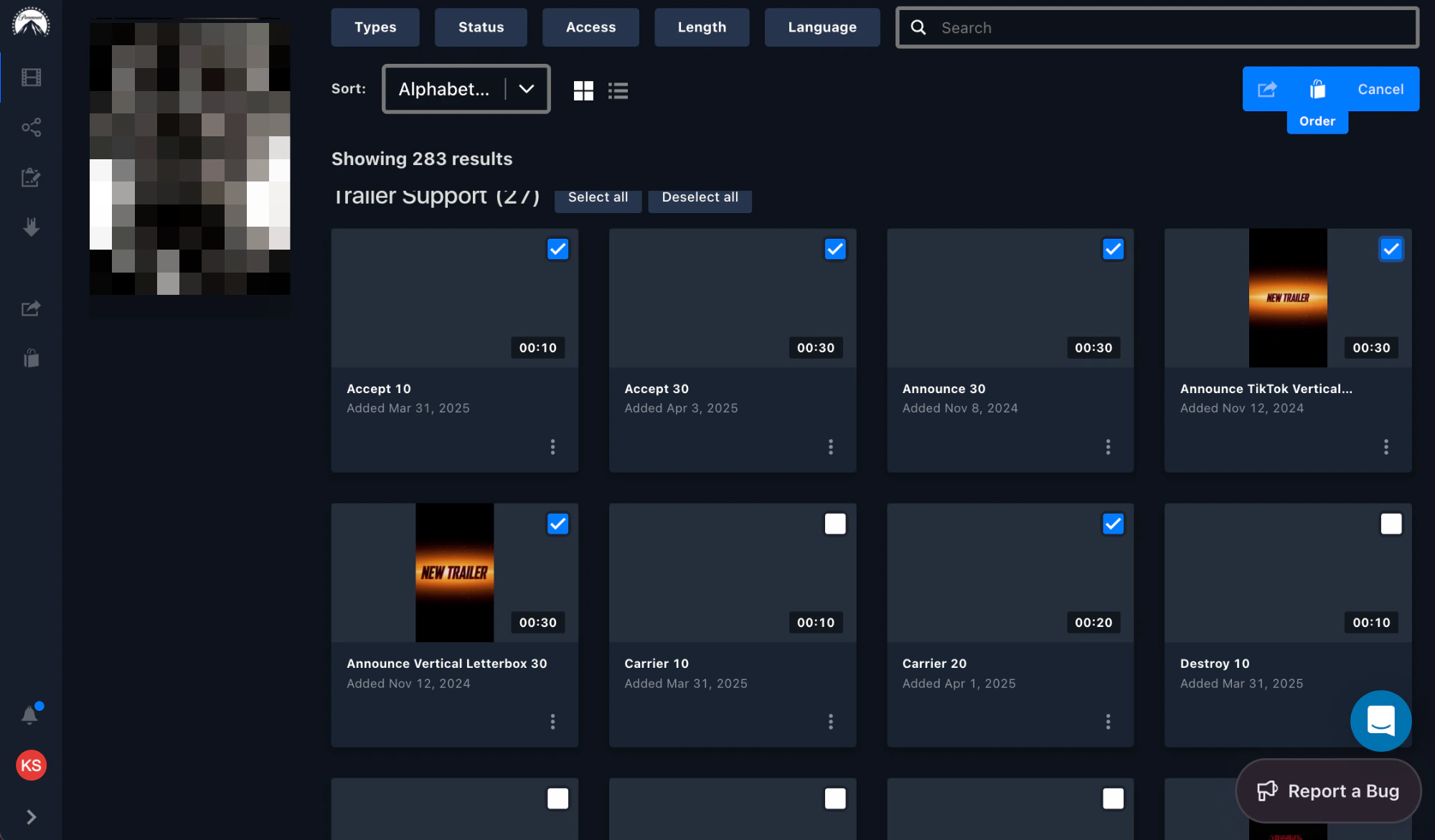
- Batch select — add multiple assets to your share and order queues at once.
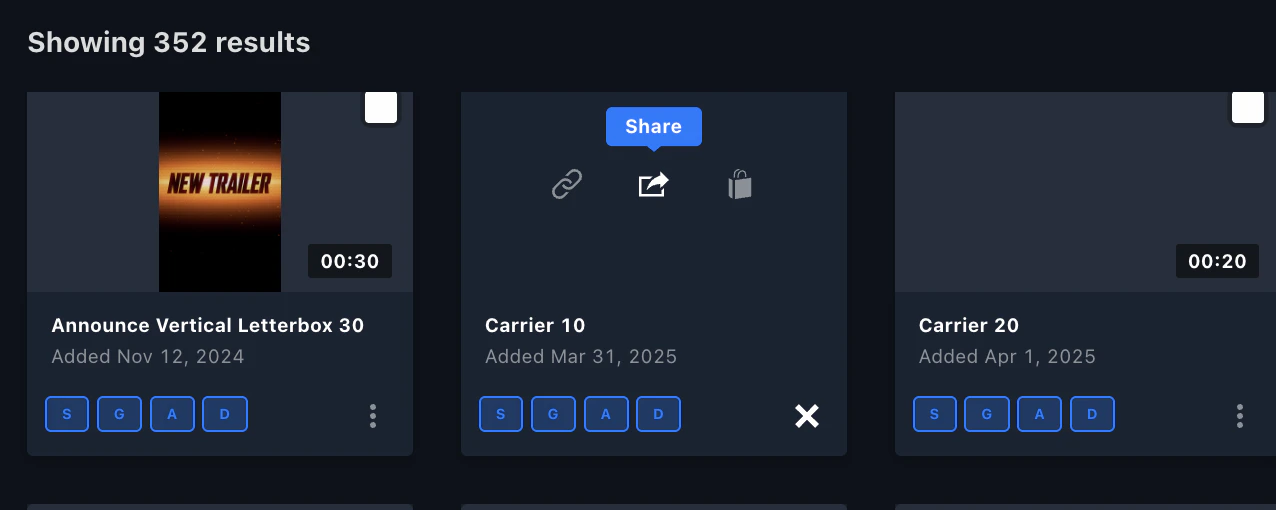
- Quick actions — add assets to a queue straight from their thumbnail as you browse.
Symbols on an asset
Two icons can appear next to an asset to flag restricted access:| Symbol | Meaning |
|---|---|
| Lock | The file is embargoed — access is restricted until a release date. See Downloads for how to tell when, and how to request access. |
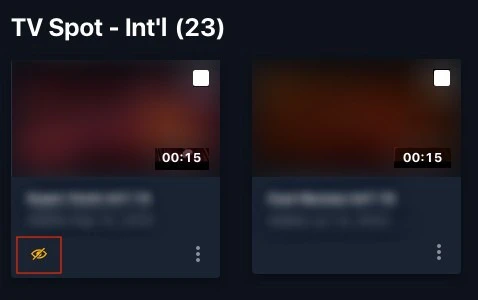
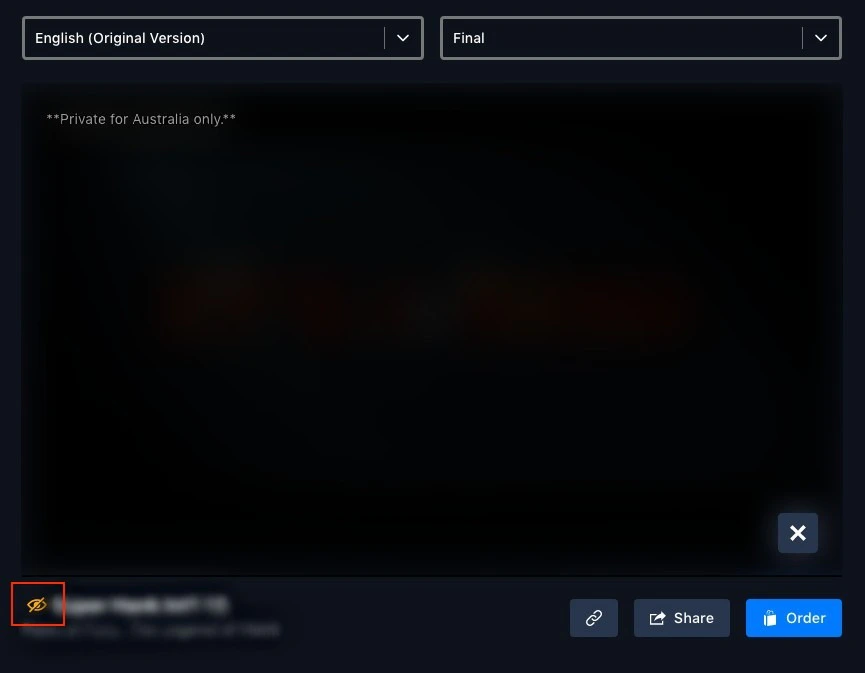
| Yellow slashed eye | The asset is private and locked to specific territories. Only Head Office, the localization vendor, and the assigned territories can see it. |

Contact lists
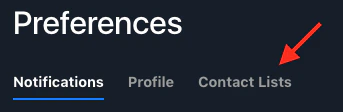
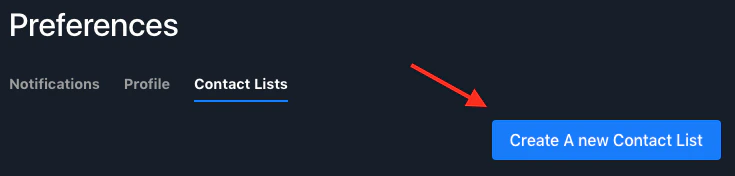
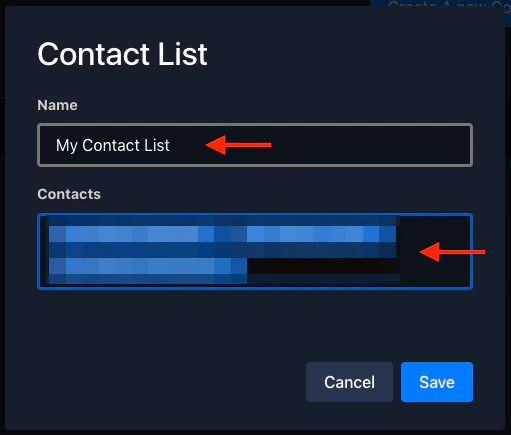
A contact list is a reusable group of recipients you can pull into a share instead of typing addresses each time.Open Preferences
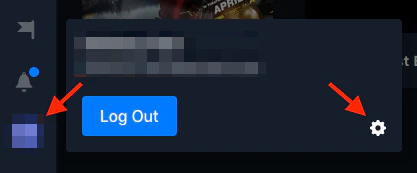
Click your user profile at the bottom-left, then the settings gear (⚙️) to open Preferences.