

Autosub
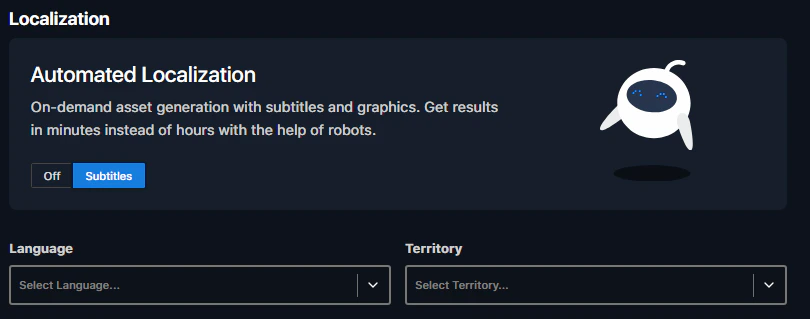
Autosub creates final subtitled files in your local language — for online or broadcast — without a vendor, in minutes instead of hours.Set language & transcodes
Choose target language, territory, and transcodes (within your permissions).
Translate
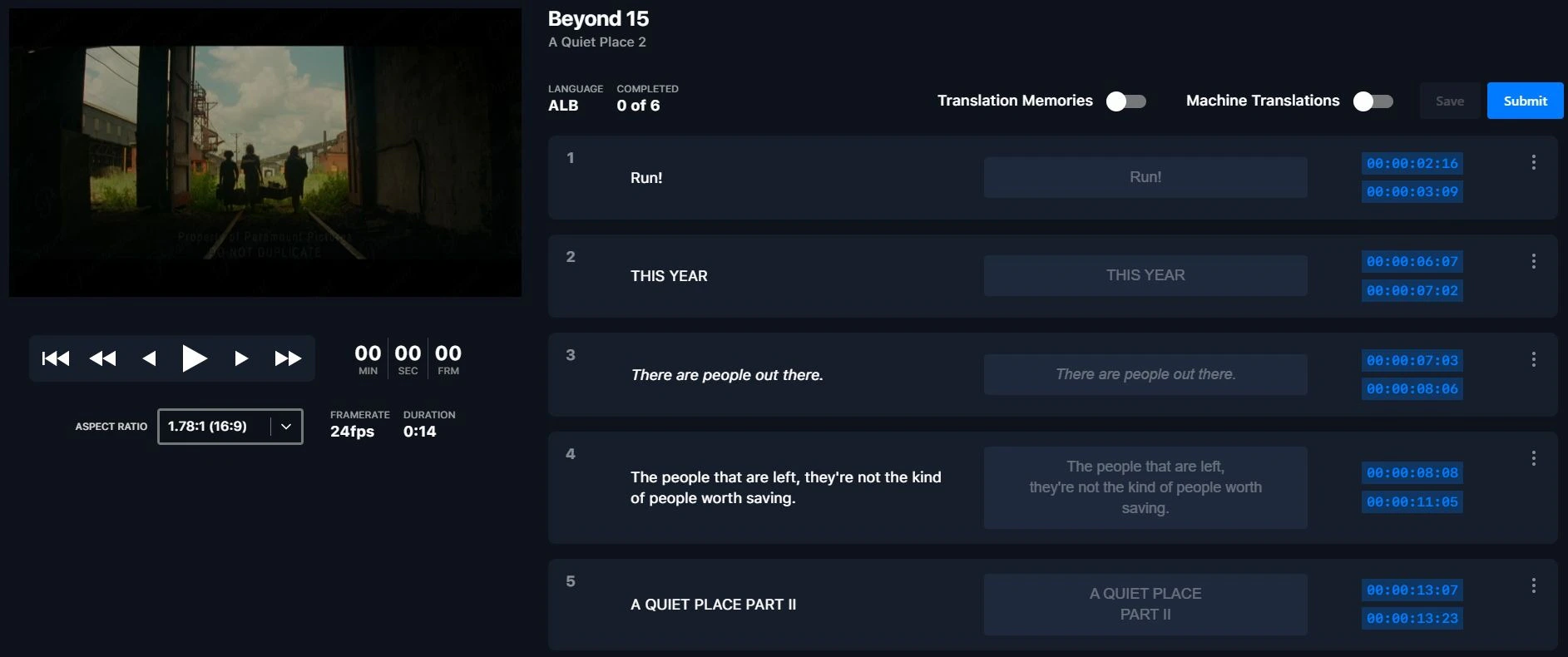
Click Place Order, then Translate Now to open the Translation Tool and enter your subtitle text.
Place subtitles
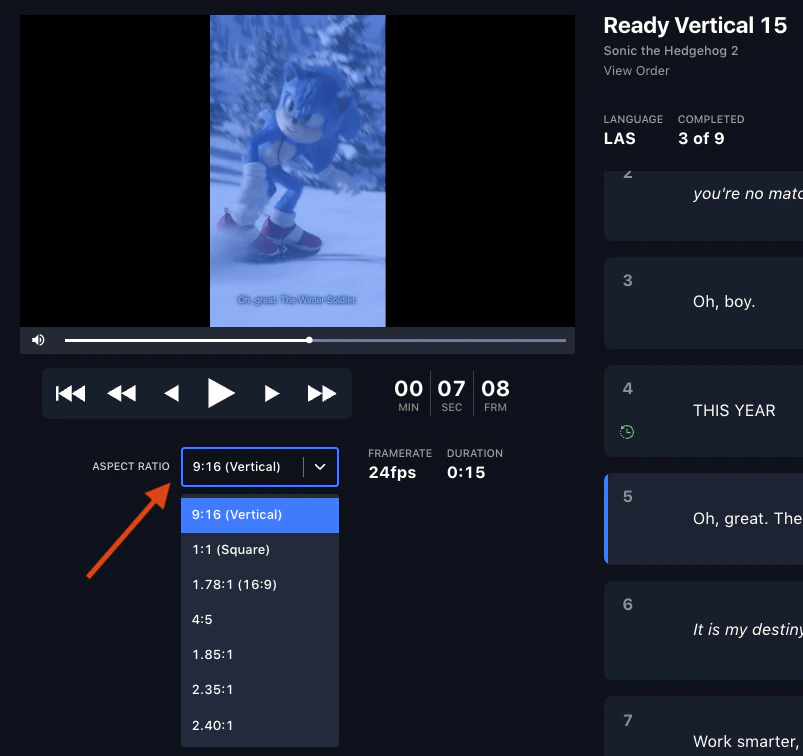
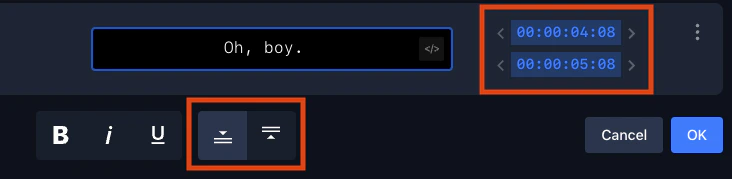
Use the Aspect Ratio dropdown to match the asset (16x9, square, 4x5, vertical), adjust timing with the arrow buttons, and reposition subtitles to avoid on-screen graphics.

Machine translations
Machine translations auto-translate every cell in the subtitler using AI/ML — a strong starting point for long-form content.- Toggle the switch on to populate translations.
- Always review before submitting — translation is subjective.

Translation memories
Translation memories automatically store translations from previous orders and reuse them — no manual step required.- Toggle Translation Memories from gray to blue to pull in stored translations; matches auto-populate in the subtitler.
- A completed longer cut (say 60s) auto-fills its shorter versions (30, 20, 15, 10s).
- Your edits become part of the memory for future projects, and it works with Autosub orders too.
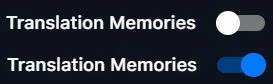
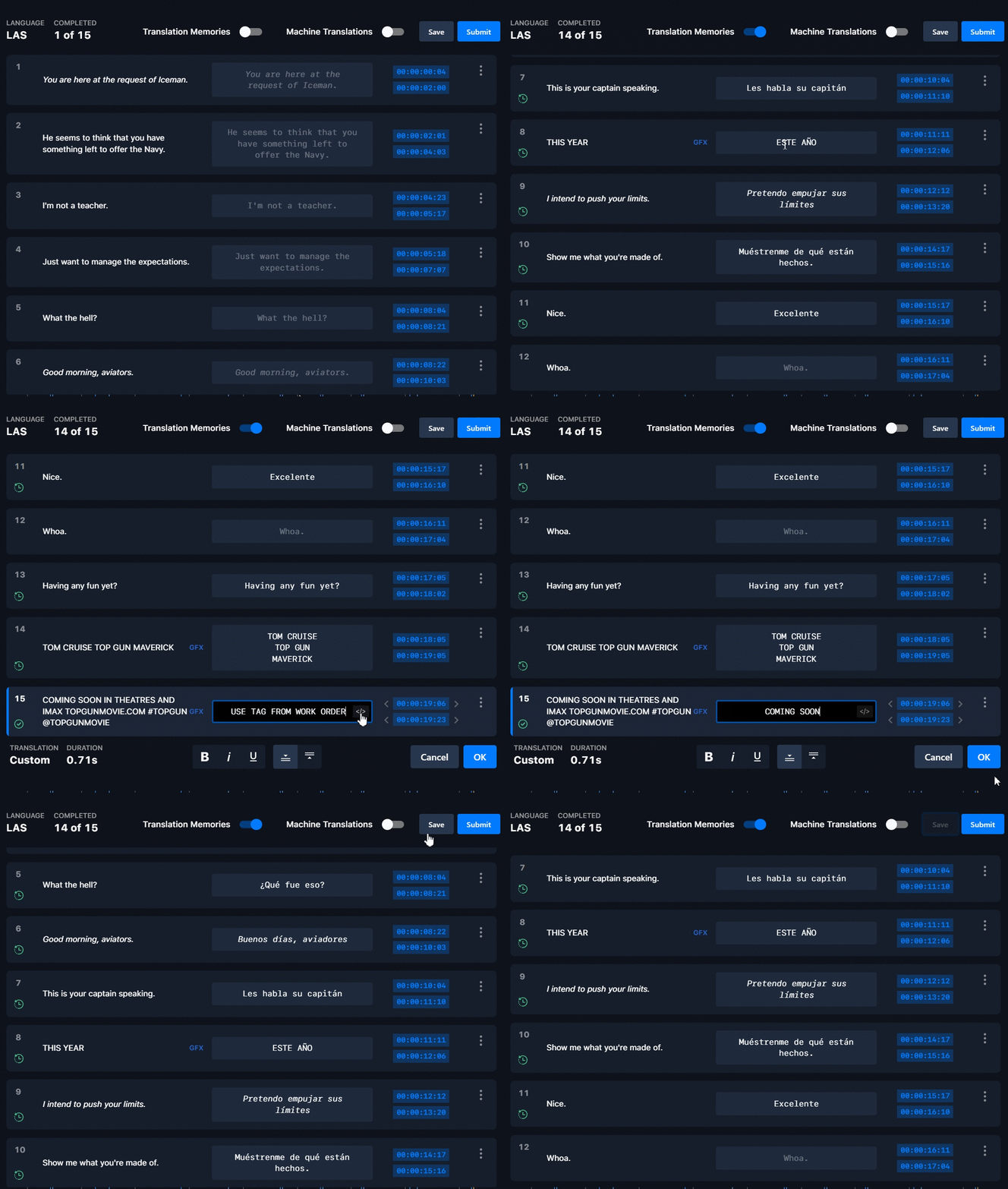
Translation memories only fire on an exact match, including punctuation. Truncated or altered lines won’t auto-populate — this protects accuracy.
Translation approvals
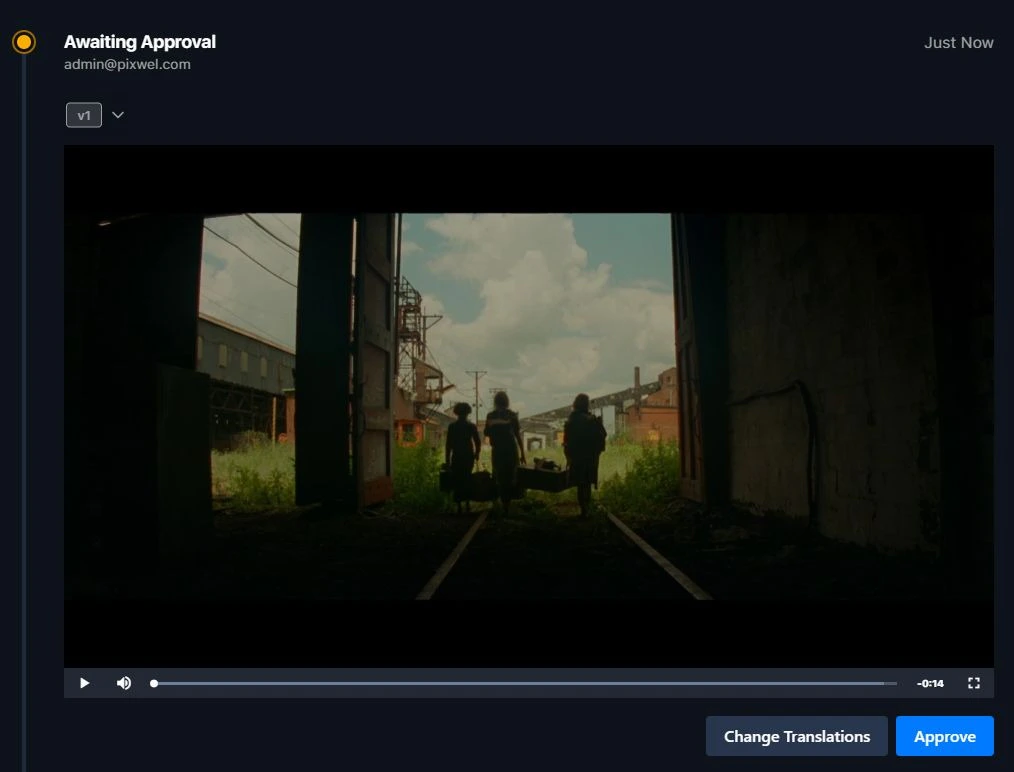
Translation approvals let you review and approve a third-party translator’s work before production proceeds. To enable: when ordering, choose Subtitled for dialogue/narration/graphics, select My Subtitled Vendor as the translation provider, then tick Require Translation Approval. The workflow:- Incomplete – Awaiting Translation — order placed, waiting on the translator.
- Incomplete – Approve Translation — the translator has submitted; click the action button to review.
- Review — edit as needed, then Approve.
- The vendor proceeds with the full request.
Splitting & merging subtitle cells
From a cell’s ⋮ menu in the subtitler:- Merge Down — combine the cell with the next into one.
- Split — divide a cell into two equal-length cells.
- Reset to OV — undo a split or merge.